Pagelet
Examples#
Pagelet example#
import flet as ft


def main(page: ft.Page):
    def handle_show_drawer(e: ft.Event[ft.FloatingActionButton]):
        pagelet.show_drawer(drawer)

    drawer = ft.NavigationDrawer(
        controls=[
            ft.NavigationDrawerDestination(
                icon=ft.Icons.ADD_TO_HOME_SCREEN_SHARP,
                label="Item 1",
            ),
            ft.NavigationDrawerDestination(
                icon=ft.Icons.ADD_COMMENT,
                label="Item 2",
            ),
        ],
    )

    page.add(
        pagelet := ft.Pagelet(
            width=400,
            height=400,
            appbar=ft.AppBar(
                title=ft.Text("Pagelet AppBar Title"),
                bgcolor=ft.Colors.AMBER_ACCENT,
            ),
            content=ft.Container(ft.Text("Pagelet Body"), padding=ft.Padding.all(16)),
            bgcolor=ft.Colors.AMBER_100,
            bottom_appbar=ft.BottomAppBar(
                bgcolor=ft.Colors.BLUE,
                shape=ft.CircularRectangleNotchShape(),
                content=ft.Row(
                    controls=[
                        ft.IconButton(icon=ft.Icons.MENU, icon_color=ft.Colors.WHITE),
                        ft.Container(expand=True),
                        ft.IconButton(icon=ft.Icons.SEARCH, icon_color=ft.Colors.WHITE),
                        ft.IconButton(
                            icon=ft.Icons.FAVORITE, icon_color=ft.Colors.WHITE
                        ),
                    ]
                ),
            ),
            end_drawer=drawer,
            floating_action_button=ft.FloatingActionButton(
                content="Open",
                shape=ft.CircleBorder(),
                on_click=handle_show_drawer,
            ),
            floating_action_button_location=ft.FloatingActionButtonLocation.CENTER_DOCKED,
        )
    )


ft.run(main)
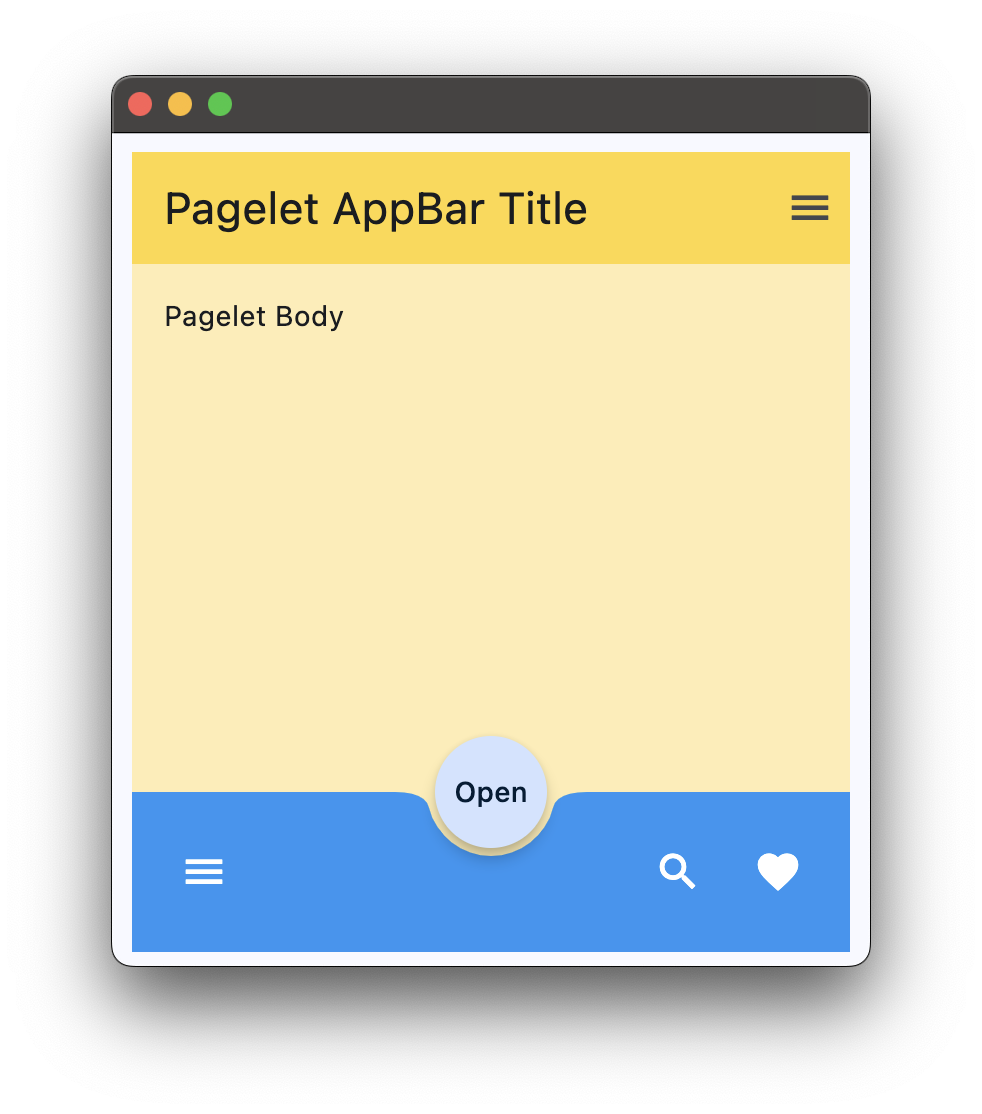
Bases: LayoutControl, AdaptiveControl
Implements the basic Material Design visual layout structure.
Use it for projects that require a "page within a page" layouts with its own
AppBar, BottomAppBar, NavigationDrawer,
such as demos and galleries.
| RAISES | DESCRIPTION |
|---|---|
AssertionError
|
If |
adaptive: bool | None = None
Enables platform-specific rendering or inheritance of adaptiveness from parent controls.
animate_align: AnimationValue | None = None
Enables implicit animation of the [align][flet.LayoutControl.] property.
More information here.
animate_margin: AnimationValue | None = None
Enables implicit animation of the [margin][flet.LayoutControl.] property.
More information here.
animate_offset: AnimationValue | None = None
Enables implicit animation of the [offset][flet.LayoutControl.] property.
More information here.
animate_opacity: AnimationValue | None = None
Enables implicit animation of the [opacity][flet.LayoutControl.] property.
More information here.
animate_position: AnimationValue | None = None
Enables implicit animation of the positioning properties
([left][flet.LayoutControl.], [right][flet.LayoutControl.],
[top][flet.LayoutControl.] and [bottom][flet.LayoutControl.]).
More information here.
animate_rotation: AnimationValue | None = None
Enables implicit animation of the [rotate][flet.LayoutControl.] property.
More information here.
animate_scale: AnimationValue | None = None
Enables implicit animation of the [scale][flet.LayoutControl.] property.
More information here.
appbar: AppBar | CupertinoAppBar | None = None
An AppBar control to display at the top
of the Pagelet.
aspect_ratio: Number | None = None
The aspect ratio of the control. It is defined as the ratio of the width to the height.
bottom: Number | None = None
The distance that the child's bottom edge is inset from the bottom of the stack.
Note
Effective only if this control is a descendant of one of the following:
[Stack][flet.] control, [Page.overlay][flet.] list.
bottom_appbar: BottomAppBar | None = None
A BottomAppBar control to display at
the bottom of the Pagelet.
Note
If both the bottom_appbar and navigation_bar
properties are specified, bottom_appbar takes precedence and will
be displayed.
bottom_sheet: Control | None = None
The persistent bottom sheet to show information that supplements the primary content of the Pagelet.
col: ResponsiveNumber = 12
If a parent of this control is a [ResponsiveRow][flet.],
this property is used to determine
how many virtual columns of a screen this control will span.
Can be a number or a dictionary configured to have a different value for specific
breakpoints, for example col={"sm": 6}.
This control spans the 12 virtual columns by default.
Dimensions
| Breakpoint | Dimension |
|---|---|
| xs | <576px |
| sm | ≥576px |
| md | ≥768px |
| lg | ≥992px |
| xl | ≥1200px |
| xxl | ≥1400px |
content: Control
A child Control contained by the Pagelet.
The control in the content of the Pagelet is positioned at the top-left of the available space between the app bar and the bottom of the Pagelet.
disabled: bool = False
Every control has disabled property which is False by default - control and all
its children are enabled.
Note
The value of this property will be propagated down to all children controls recursively.
drawer: NavigationDrawer | None = None
A NavigationDrawer control to
display as a panel sliding from the start edge of the page.
end_drawer: NavigationDrawer | None = None
A NavigationDrawer control to
display as a panel sliding from the end edge of the page.
Specifies whether/how this control should expand to fill available space in its parent layout.
More information here.
Note
Has effect only if the direct parent of this control is one of the following
controls, or their subclasses: [Column][flet.], [Row][flet.],
[View][flet.], [Page][flet.].
expand_loose: bool = False
Allows the control to expand along the main axis if space is available, but does not require it to fill all available space.
More information here.
Note
If expand_loose is True, it will have effect only if:
expandis notNoneand- the direct parent of this control is one of the following controls, or their
subclasses: [
Column][flet.], [Row][flet.], [View][flet.], [Page][flet.].
floating_action_button: Control | None = None
A FloatingActionButton
control to display on top of Pagelet content.
floating_action_button_location: (
    FloatingActionButtonLocation | OffsetValue | None
) = END_FLOAT
Defines a position for the FloatingActionButton.
left: Number | None = None
The distance that the child's left edge is inset from the left of the stack.
Note
Effective only if this control is a descendant of one of the following:
[Stack][flet.] control, [Page.overlay][flet.] list.
navigation_bar: (
    NavigationBar | CupertinoNavigationBar | None
) = None
A navigation bar (NavigationBar or
CupertinoNavigationBar) control to display
at the bottom of the Pagelet.
Note
If both the navigation_bar and bottom_appbar
properties are specified, navigation_bar takes precedence and will
be displayed.
offset: OffsetValue | None = None
Applies a translation transformation before painting the control.
The translation is expressed as an Offset scaled to the control's size.
So, Offset(x=0.25, y=0), for example, will result in a horizontal translation
of one quarter the width of this control.
Example
The following example displays container at 0, 0 top left corner of a stack as
transform applies -1 * 100, -1 * 100 (offset * control's size) horizontal and
vertical translations to the control:
on_animation_end: (
    ControlEventHandler[LayoutControl] | None
) = None
Called when animation completes.
Can be used to chain multiple animations.
The data property of the event handler argument contains the name
of the animation.
More information here.
opacity: Number = 1.0
Defines the transparency of the control.
Value ranges from 0.0 (completely transparent) to 1.0 (completely opaque
without any transparency).
parent: BaseControl | None
The direct ancestor(parent) of this control.
It defaults to None and will only have a value when this control is mounted
(added to the page tree).
The Page control (which is the root of the tree) is an exception - it always
has parent=None.
right: Number | None = None
The distance that the child's right edge is inset from the right of the stack.
Note
Effective only if this control is a descendant of one of the following:
[Stack][flet.] control, [Page.overlay][flet.] list.
rotate: RotateValue | None = None
Transforms this control using a rotation around its center.
The value of rotate property could be one of the following types:
number- a rotation in clockwise radians. Full circle360°ismath.pi * 2radians,90°ispi / 2,45°ispi / 4, etc.Rotate- allows to specify rotationangleas well asalignment- the location of rotation center.
scale: ScaleValue | None = None
Scales this control along the 2D plane. Default scale factor is 1.0,
meaning no-scale.
Setting this property to 0.5, for example, makes this control twice smaller,
while 2.0 makes it twice larger.
Different scale multipliers can be specified for x and y axis, by setting
Control.scale property to an instance of Scale class.
Either scale or scale_x and scale_y could be specified, but not all of them.
tooltip: TooltipValue | None = None
The tooltip ot show when this control is hovered over.
top: Number | None = None
The distance that the child's top edge is inset from the top of the stack.
Note
Effective only if this control is a descendant of one of the following:
[Stack][flet.] control, [Page.overlay][flet.] list.
visible: bool = True
Every control has visible property which is True by default - control is
rendered on the page. Setting visible to False completely prevents control (and
all its children if any) from rendering on a page canvas. Hidden controls cannot be
focused or selected with a keyboard or mouse and they do not emit any events.
Called once during control initialization to define its child controls. self.page is available in this method.